
Build Your Email List with LinkedIn: From Connection to Subscriber
Learn how to convert LinkedIn followers into email subscribers using the magic keyword strategy. From post to DM to opt-in. Automated with LinkedIfy.
5 min readRead article
Cookies
We use cookies for analytics to improve our website. Cookie policy
Learn how to create LinkedIn carousel posts that get 2x more engagement. From first slide hook to last slide CTA. Practical tips, format specs and templates.
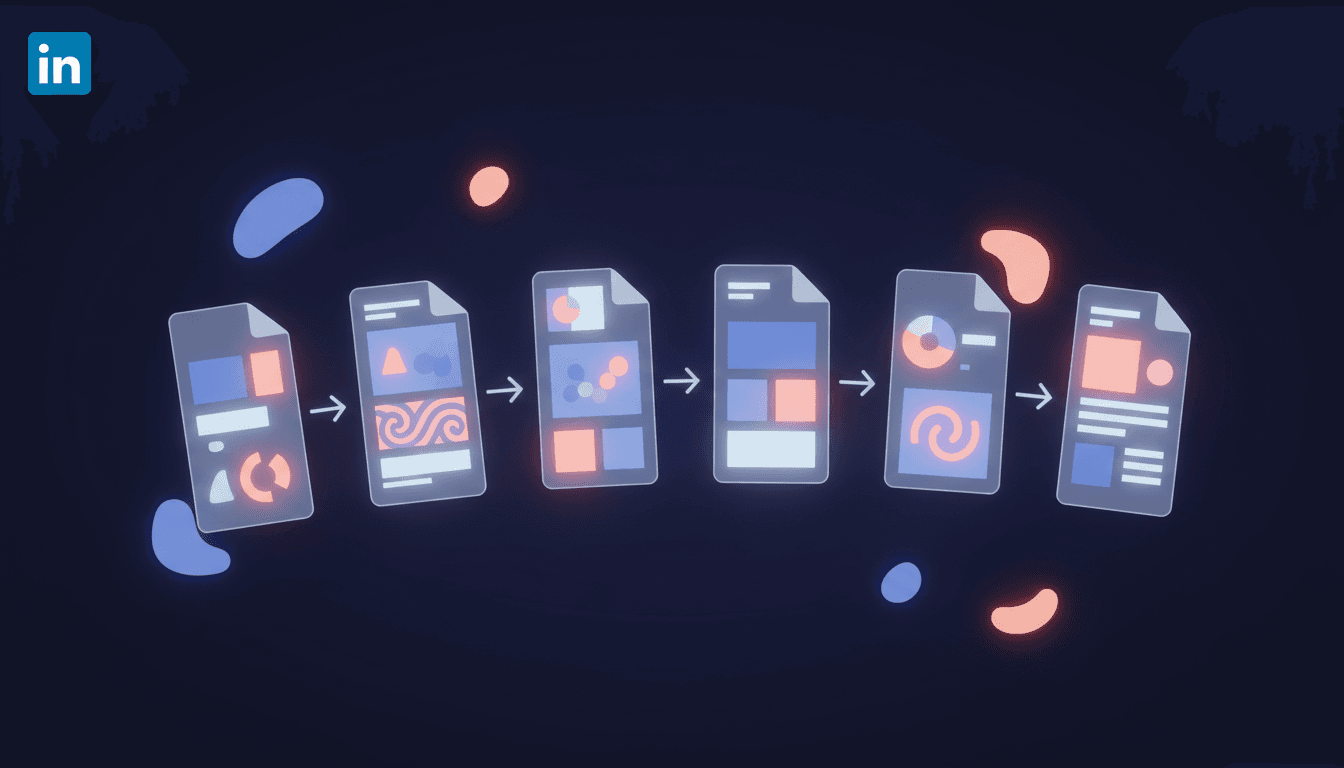
You post a text update on LinkedIn. A few likes, maybe one comment. Next day, same story. Meanwhile, others are getting hundreds of reactions with swipeable slides. The difference? They use carousel posts. And they are easier to create than you think.
A carousel is a series of slides people can swipe through in their LinkedIn feed. You upload a PDF, PowerPoint, or Word file, and LinkedIn displays it as swipeable pages. Every swipe counts as an interaction. And interaction is exactly what the algorithm wants to see.
The numbers speak for themselves: carousel posts average 6.6% engagement, nearly 2x higher than video and 6x higher than text-only posts. That makes carousels the most effective organic format on LinkedIn in 2026.
Create your slides in Canva, Figma or PowerPoint
Save as a multi-page PDF (max 100MB)
Click 'Add a document' when creating a new post
Add compelling text with context
The great thing is you do not need to be a designer. Canva has free LinkedIn carousel templates. Pick a template, edit the text, export as PDF, and you are done. The whole process takes less than 20 minutes.
Use 1080 x 1350 pixels (4:5 ratio) for maximum screen real estate on mobile. Square (1080 x 1080) works too, but takes up less space. Keep your file under 10MB for fast loading, even though the maximum is 100MB.
The sweet spot for slide count is 6 to 10. Enough room to deliver value, short enough to hold attention. Use fonts of at least 30pt and keep text under 50 words per slide.

The first slide is your advertisement. If it does not grab attention, nobody swipes further. Use a large, bold headline that names a problem or sparks curiosity. Think: "7 mistakes killing your LinkedIn reach" or "How I generate 50 leads per month on LinkedIn." Add an arrow pointing right to encourage swiping. Check out our tips for successful LinkedIn posts for more inspiration.
The golden rule for middle slides: one point per slide. Do not cram three tips onto one page. Each slide should be understandable in 3 seconds. Use a consistent design template with the same colors, fonts, and layout. That reduces cognitive load and keeps attention on your content.
Formats that work well: step-by-step guides, numbered tips, before/after comparisons, or a framework broken into steps. Add a visual element to each slide: an icon, a simple illustration, or a screenshot.
Try LinkedIfy free for 7 days — no credit card required.
The last slide is where you ask for action. "Follow me for more tips", "Save this post", or even better: "Comment CHECKLIST and I will send you the full guide." That last one is a lead magnet strategy that generates leads directly. Anyone who responds with the magic keyword automatically receives your lead magnet via DM.
A carousel without a good caption is a missed opportunity. Summarize the key takeaway in your first sentence. Give context on why these slides are valuable. And end with a question or CTA that encourages people to comment. More comments means more LinkedIn shows your post to others.
The sweet spot is 6 to 10 slides. Enough to deliver value, short enough to hold attention. Posts with fewer than 5 slides feel too short, more than 12 lose readers.
Upload a PDF, PowerPoint, or Word file. The ideal dimension is 1080 x 1350 pixels (4:5 ratio) for maximum visibility on mobile. Keep the file under 10MB for fast loading.
Every swipe counts as an interaction for the LinkedIn algorithm. Carousels average 6.6% engagement, nearly 2x higher than video. More interaction means more impressions.
Yes, that is a powerful strategy. Use the last slide as a CTA with a magic keyword. Anyone who responds automatically receives your lead magnet via DM. Tools like LinkedIfy automate this entire process.
Carousel posts are perfect for engagement. But the real value is in what happens next. With LinkedIfy you automatically send your lead magnet to everyone who responds to your carousel. So every swipe delivers not just a like, but a lead.
Try LinkedIfy free for 7 days. No credit card required. Your first campaign live in 15 minutes.
No credit card required - Set up in 2 minutes